
The Ultimate Guide to the Microsoft Surface Laptop Studio: Power Meets Flexibility
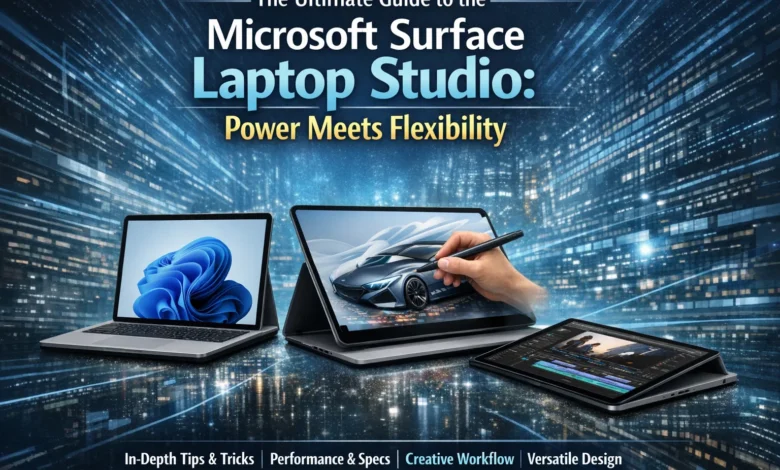
Microsoft Surface Laptop Studio: Let’s be honest—finding a laptop that truly adapts to the way you work can feel like searching for a unicorn. You want something sleek enough to toss in a bag, powerful enough to handle demanding creative work, and flexible enough to shift from typing out code to sketching ideas without missing a beat. Enter the Microsoft Surface Laptop Studio, a device that dares to be different in a sea of same-looking laptops.

When Microsoft unveiled this machine, they weren’t just releasing another Surface product. They were making a statement about what a laptop could be. The Surface Laptop Studio takes the best elements of the beloved Surface Book—that unique pull-forward screen—and combines them with the raw performance of a workstation-class device. It’s designed for people who don’t want to compromise between portability and power, for creators who need a digital canvas one minute and a coding powerhouse the next. Whether you’re a developer compiling massive projects, a graphic artist bringing illustrations to life, or someone who just appreciates thoughtful engineering, this machine demands attention. And trust me, after spending time with it, you’ll understand why the Microsoft Surface Laptop Studio has earned a reputation as one of the most versatile laptops on the market.
The Revolutionary Design: More Than Just a Laptop
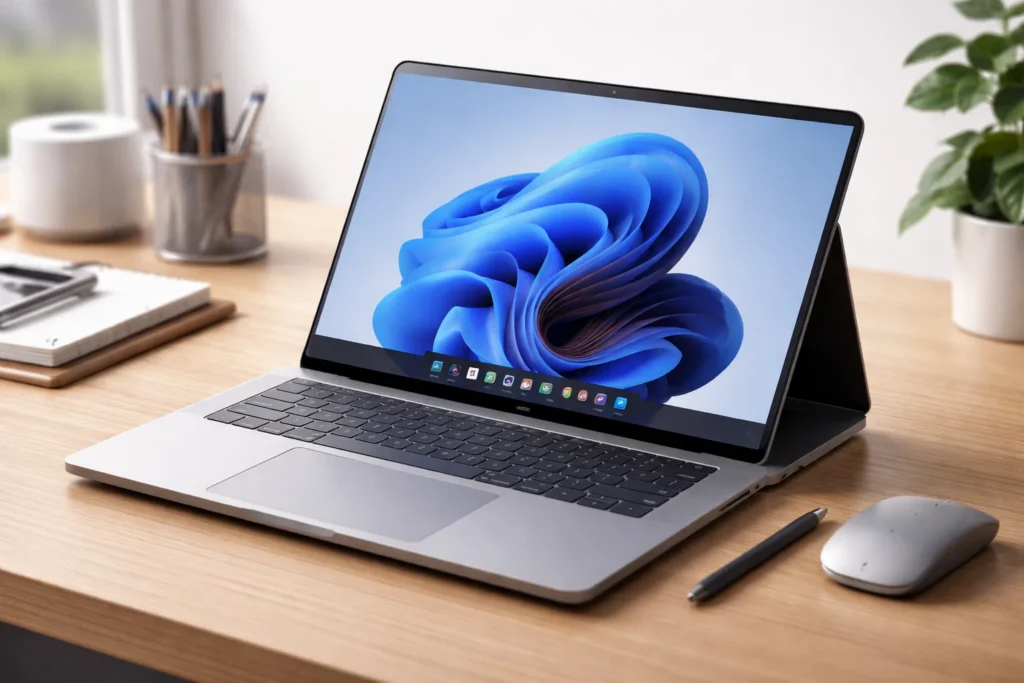
At first glance, the Surface Laptop Studio looks like a fairly standard laptop. But then you try to close the lid—and that’s when the magic happens. Instead of a traditional hinge that simply folds the screen down, this device features a unique woven fabric hinge that allows the display to pull forward and rest at different angles. Microsoft’s engineering team designed this hinge to bend up to 180 degrees without putting stress on internal cables, using advanced cable management and a special form of woven fabric for durability. When you’re in laptop mode, magnets keep everything securely in place, giving you a rock-solid typing experience.
But here’s where it gets interesting. The Microsoft Surface Laptop Studio actually offers three distinct modes that adapt to whatever you’re doing. In laptop mode, you get the traditional clamshell experience—perfect for typing up documents, responding to emails, or writing code. Pull the screen forward and let it rest in what Microsoft calls “stage mode,” and suddenly you’ve got a screen angled perfectly for watching movies or presenting to clients. Push it all the way down into “studio mode,” and you’ve transformed the device into a digital canvas that’s ideal for drawing, sketching, or taking handwritten notes with the Surface Slim Pen 2. This isn’t just a gimmick—it’s a thoughtful reimagining of how we interact with our devices throughout the day.
The Display That Brings Ideas to Life
Open up the Surface Laptop Studio, and the first thing that hits you is that screen. It’s a 14.4-inch PixelSense Flow display with a resolution of 2400 x 1600, and it uses Microsoft’s signature 3:2 aspect ratio. Now, if you’re coming from a typical 16:9 laptop screen, this ratio might take some getting used to—but trust me, once you experience it, you won’t want to go back. That extra vertical space means you see more lines of code, more rows in a spreadsheet, and more of your document without constant scrolling.
The display also rocks a 120Hz refresh rate, which makes everything from scrolling through web pages to drawing with the pen feel incredibly smooth and responsive. Colors are vivid and accurate, with Dolby Vision support that makes bright scenes pop and dark scenes retain detail. The screen is also individually color-calibrated at the factory, which is a godsend for creative professionals who need color accuracy for photo editing or video work. Whether you’re editing in Adobe Premiere or just binge-watching your favorite show, the display on the Surface Laptop Studio delivers an experience that’s genuinely hard to beat.
Performance That Means Business
Under the hood, the Microsoft Surface Laptop Studio packs serious power. The original generation (released in 2021) came equipped with 11th Gen Intel Core H-series processors—the quad-core i5 and i7 options—paired with either Intel Iris Xe integrated graphics or discrete NVIDIA GeForce RTX 3050 Ti graphics. For business users, there was even an NVIDIA RTX A2000 option, which offers enterprise-level reliability and ISV certification for professional applications.
Now, the second generation (Surface Laptop Studio 2) stepped things up significantly. It features 13th Gen Intel Core i7 H-series processors, up to 64GB of LPDDR5x RAM, and NVIDIA GeForce RTX 40-series graphics options (including the RTX 4050 and RTX 4060). In real-world terms, what does this mean? For developers, it means compiling large C++ projects in Visual Studio happens up to 27% faster than on previous-generation devices. For 3D artists, it means rendering complex scenes in Blender or Autodesk Maya with hardware-accelerated ray tracing. For video editors, it means smooth 4K timeline scrubbing in Adobe Premiere Pro without dropped frames.
One thing worth noting is that the Surface Laptop Studio uses a dynamic cooling system with dual fans and heat pipes that connect across both the CPU and GPU. This shared cooling approach means that under heavy workloads—like running a machine learning model or gaming—the device can sustain performance without thermal throttling. It’s a smart engineering choice that keeps the device running quietly while delivering the power you need.
Graphics Capabilities: From Gaming to 3D Rendering
Let’s talk graphics, because this is where the Microsoft Surface Laptop Studio truly separates itself from the pack. The NVIDIA GeForce RTX 3050 Ti in the first-gen model is no slouch—it comes with 4GB of GDDR6 VRAM, second-generation RT cores for ray tracing, and third-generation Tensor cores for AI-accelerated workloads. For creative professionals, this means hardware acceleration in apps like Adobe Lightroom and DaVinci Resolve, making tasks like AI denoising or applying complex filters happen in seconds rather than minutes.
The second-gen models take things even further. With RTX 4050 or 4060 graphics, you’re looking at a significant leap in performance. Benchmarks show that the RTX 4060 version can hit 3DMark Time Spy scores around 9,560, which is genuinely impressive for a convertible laptop. What does that mean for you? It means you can play modern games at 1080p with high settings and DLSS enabled, hitting 60+ frames per second. It means you can run real-time ray tracing in Unreal Engine while developing games. It means you can work with complex 3D models in applications like SolidWorks or AutoCAD without lag.
There’s also the NVIDIA Studio driver program, which is a huge deal for creative workflows. These drivers are specifically optimized for creative applications like Adobe Creative Cloud, Autodesk, and Blender. They’re rigorously tested for stability, which means fewer crashes and more time actually creating. If you’re a professional designer, architect, or video editor, that kind of reliability is worth its weight in gold.
The Pen Experience: Haptics That Feel Like Paper
If you’re an artist or someone who takes a lot of handwritten notes, the pen experience on the Surface Laptop Studio is going to blow your mind. Microsoft designed this device to work seamlessly with the Surface Slim Pen 2, which stores magnetically and charges wirelessly in the front of the keyboard deck. That means your pen is always right where you need it, never lost at the bottom of your bag.
But it’s the haptic feedback that really sets this experience apart. When you write or draw with the Slim Pen 2 on the Microsoft Surface Laptop Studio, you actually feel subtle vibrations that simulate the sensation of a pen on paper. There’s a slight drag, a tiny resistance that makes your strokes feel more natural. In Windows 11, these tactile signals extend beyond just drawing—when you snap windows together or adjust controls in creative apps, you get haptic feedback that confirms your actions. It’s one of those features that seems small but makes a massive difference in how connected you feel to your work.
Developers have found creative uses for the pen, too. In code review scenarios, using the pen to annotate code defects or draw diagrams in Azure DevOps is significantly faster than using a mouse—one study showed a 41% efficiency improvement. For UI/UX designers who double as front-end developers, the pen paired with Adobe XD allows for pixel-perfect prototyping that translates directly into cleaner code.
The Haptic Touchpad: Precision Redefined
Let’s talk about something that doesn’t get enough love in laptop reviews: the touchpad. The Surface Laptop Studio features the largest precision haptic touchpad Microsoft has ever put on a Surface device. And when I say haptic, I mean it actually gives you physical feedback when you click. It’s not a mechanical hinge—it’s a solid-state surface with sensors that detect pressure and provide a satisfying “click” sensation through vibrations.
This might sound like a minor detail, but once you use a haptic touchpad, it’s hard to go back. The feedback is consistent across the entire surface—you can click anywhere, not just at the bottom edge. It’s customizable, too, so you can adjust the sensitivity to match your preferences. For developers who spend hours navigating code, the touchpad’s support for Windows 11 gestures—three-finger swipes to switch virtual desktops, four-finger taps to open the action center—becomes second nature and genuinely speeds up workflow.
Ports and Connectivity: Thunderbolt 4 Changes the Game
One of the biggest complaints about earlier Surface devices was the lack of Thunderbolt support. Microsoft listened. The Surface Laptop Studio comes equipped with two USB-C ports that support USB 4.0 and Thunderbolt 4. What does this mean for you? It means data transfer speeds up to 40Gbps, which is four times faster than USB 3.2. It means you can connect dual 4K monitors or a single 8K display. It means you can use external GPUs for even more graphics horsepower, or connect to high-speed SSDs for video editing directly from external storage.
Beyond Thunderbolt, you get a USB-A 3.1 port (yes, they kept it—thank you, Microsoft), a 3.5mm headphone jack, a Surface Connect port for charging and docking, and in the second-gen model, a microSDXC card reader. This port selection is refreshingly practical. You can plug in your existing peripherals without a dongle, while still having access to the latest high-speed standards.
Battery Life: All-Day Power
For a device with this much performance, you might expect battery life to be a weak spot. But the Microsoft Surface Laptop Studio actually holds its own. Microsoft rates the first-gen model at up to 19 hours of typical device usage for the i5 configuration. In real-world testing, developers running continuous builds and compiling code got about 7 to 9 hours, depending on workload. That’s enough to get through a full workday, especially if you’re smart about power management.
The second-gen models have slightly lower battery estimates—up to 18 hours for the NVIDIA models, and around 16 hours for the highest-spec 2TB SSD configuration. But here’s a pro tip: if you’re doing intensive work like video editing or 3D rendering, you’ll want to stay plugged in anyway. For everyday tasks like web browsing, coding, and office work, the Microsoft Surface Laptop Studio will easily get you through the day without hunting for an outlet.
Audio and Camera: Built for the Hybrid World
Let’s be real—we live in a world of video calls. Whether it’s Zoom, Teams, or Google Meet, having good audio and video quality isn’t a luxury anymore; it’s a necessity. The Surface Laptop Studio delivers on both fronts. The 1080p front-facing camera uses a larger sensor than previous Surface devices and employs AI-based face detection to automatically adjust exposure and white balance. Even in challenging lighting—say, a window behind you or a dimly lit room—the camera keeps your face looking natural and well-lit.
The dual studio mics capture your voice with crisp detail, and there’s also a quad Omnisonic speaker system with four drivers and Dolby Atmos support. What’s clever about the speakers is that the Microsoft Surface Laptop Studio uses adaptive equalization to adjust bass and treble based on the volume level and the device posture. Whether you’re in laptop mode for a meeting or studio mode watching a movie, the audio adjusts to deliver the best possible experience. It’s genuinely one of the best sound systems you’ll find in a laptop this size.
The Developer Experience: Where This Machine Shines
If you’re a developer considering the Surface Laptop Studio, you’re probably wondering how it handles your toolchain. The short answer: exceptionally well. The combination of powerful Intel H-series processors, ample RAM (up to 64GB), and fast NVMe SSDs (with read speeds around 3.5GB/s) means that even demanding development workflows are smooth.
The real star for developers, though, is how well the Microsoft Surface Laptop Studio plays with WSL2 (Windows Subsystem for Linux). Running Ubuntu 22.04 through WSL2, developers have reported file system I/O performance up to five times faster than WSL1. In practice, this means things like npm install in Node.js projects happen 37% faster than on native Windows. For backend developers working with Docker, the experience is equally impressive—the Surface Laptop Studio can run multiple containers simultaneously without breaking a sweat.
The 3:2 aspect ratio deserves another mention here. When you’re working in Visual Studio or VS Code, that extra vertical space means you can see more lines of code at once. Developers testing the device found that the vertical screen real estate provides about 18% more usable space than a standard 16:9 display. For front-end developers, the 120Hz refresh rate makes UI animations and scrolling through previews feel incredibly smooth.
The Second Generation: What Changed
In late 2023, Microsoft released the Surface Laptop Studio 2, and it addressed many of the criticisms of the original. The processor jump from 11th Gen to 13th Gen Intel H-series brought significant performance improvements—in multi-threaded workloads, the second-gen model is up to 2.4 times faster than its predecessor. The RAM was upgraded from LPDDR4x to LPDDR5x, and the maximum configuration went from 32GB to 64GB.
The GPU options expanded from RTX 3050 Ti to include RTX 4050 and 4060 configurations, delivering about 30-40% better graphics performance depending on the workload. Storage options now go up to 2TB with Gen 4 SSDs. And crucially, Microsoft added a microSD card reader to the second-gen model—a small addition that photographers and videographers really appreciated. The second-gen also introduced an Intel Movidius VPU for AI acceleration, which powers Windows Studio Effects like automatic framing and background blur without taxing the CPU.
The Discontinuation News: What It Means
As of early 2025, reports emerged that Microsoft has stopped manufacturing the Surface Laptop Studio 2, with existing retail stock being the last available units. This news, first reported by The Verge and confirmed by Ars Technica, suggests that the unique Studio form factor may be on its way out. Microsoft plans to officially announce the end-of-life status in June 2025, though driver and firmware support will continue through at least October 2029 in accordance with Microsoft’s six-year support lifecycle.
What does this mean if you’re considering buying one? First, if you want one, act soon—once the current stock is sold, they’re gone. Second, this doesn’t make the device any less capable; it just means Microsoft is likely shifting focus to other form factors. The Surface Laptop Studio was always a niche product—powerful, innovative, but expensive. It’s the kind of device that inspires the industry even if it doesn’t sell in iPhone-like numbers. If you can find one at a good price, particularly a certified refurbished unit from Microsoft (which comes with a two-year warranty), it’s still an excellent machine that will serve you well for years.
Price and Value: Is It Worth It?
Let’s talk about the elephant in the room: price. The Microsoft Surface Laptop Studio is not cheap. The original model started around $1,600, and fully loaded configurations could easily push past $3,000. The second-gen starts at around $2,400 for a basic config, with maxed-out versions approaching $4,300.
So is it worth it? That depends entirely on what you do. If you’re a creative professional—a designer, architect, video editor, or 3D artist—who needs a machine that can handle demanding applications and also function as a digital canvas, the Surface Laptop Studio is genuinely unique. There’s no other laptop that offers this specific combination of power, flexibility, and pen experience. If you’re a developer who wants a powerful Windows machine with great build quality and the ability to sketch out architecture diagrams on the screen, it’s a compelling option.
If you’re primarily a writer or someone who mostly does email and web browsing, this is probably overkill. You’d be better served by a Surface Laptop or Surface Pro. But for the people who need what the Microsoft Surface Laptop Studio offers, there’s really no substitute. It’s a tool, not just a device, and like any professional tool, the cost is justified by the work it enables.
Conclusion
The Microsoft Surface Laptop Studio represents something increasingly rare in the tech world: genuine innovation. In an industry where most laptops follow the same basic blueprint year after year, Microsoft dared to build something different. The flexible hinge, the haptic touchpad, the pen experience that actually feels like writing on paper—these aren’t just features; they’re statements about how we should interact with our computers.
For the right user—the creative professional, the developer who sketches architecture, the artist who codes—this machine is nothing short of transformative. It adapts to your workflow instead of forcing you to adapt to it. The performance is there when you need it, the battery lasts through the workday, and the screen is genuinely a joy to work on.
Yes, it’s expensive. Yes, the discontinuation news means you need to act fast if you want one. But for those who need what it offers, the Surface Laptop Studio remains one of the most compelling and capable devices on the market. It’s a reminder that sometimes, the best tools are the ones that make you forget you’re using a tool at all.
Frequently Asked Questions
What are the different modes of the Surface Laptop Studio, and how do they work?
The Surface Laptop Studio features three distinct modes that adapt to different tasks. Laptop mode is the traditional clamshell position for typing and everyday use. Stage mode is achieved by pulling the screen forward and resting it at an angle, perfect for watching movies or presenting. Studio mode is when you pull the screen all the way forward and lay it flat, creating a digital canvas for drawing and writing with the Surface Slim Pen 2. The device uses a durable woven fabric hinge that bends up to 180 degrees without stressing internal components.
Is the Surface Laptop Studio good for gaming?
Yes, the Microsoft Surface Laptop Studio can handle gaming surprisingly well, especially the second-gen models with RTX 4050 or 4060 graphics. You can expect 60+ frames per second in many modern games at 1080p with medium to high settings, especially when using DLSS. The 120Hz display makes gameplay smooth, and the quad Omnisonic speakers with Dolby Atmos provide immersive audio. However, it’s not a dedicated gaming laptop—it’s a creative workstation that also games well.
Does the Surface Laptop Studio come with the pen?
No, the Surface Slim Pen 2 is sold separately. However, the Surface Laptop Studio is designed with a dedicated magnetic charging bay at the front of the keyboard deck where you can store and wirelessly charge the pen. This makes it convenient to keep the pen with the device, even though it’s an additional purchase. Some retailers offer bundles that include the pen, so it’s worth checking for those deals.
What are the main differences between the first and second generations?
The second-generation Surface Laptop Studio (released in late 2023) features significant upgrades over the original. It uses 13th Gen Intel Core H-series processors instead of 11th Gen, offers up to 64GB of LPDDR5x RAM (up from 32GB LPDDR4x), and includes NVIDIA RTX 40-series graphics (RTX 4050 or 4060) instead of RTX 3050 Ti. The second-gen also adds a microSD card reader, an AI accelerator (Intel Movidius VPU), and improved overall performance—up to 2.4 times faster in multi-threaded CPU workloads.
Is the Surface Laptop Studio being discontinued?
Yes, reports indicate that Microsoft stopped manufacturing the Surface Laptop Studio 2 in early 2025, and the device will disappear after the current retail stock is sold. The company is expected to officially announce the end-of-life status in June 2025. However, Microsoft will continue to provide driver and firmware support through at least October 2029, in line with their six-year support lifecycle for Surface hardware.
How long does the battery last on the Surface Laptop Studio?
Battery life varies by configuration and usage. Microsoft rates the first-gen Surface Laptop Studio at up to 19 hours for the i5 model. In real-world testing, developers and creative professionals report 7 to 9 hours under heavy workloads like continuous compiling or rendering. The second-gen models are rated up to 18 hours for NVIDIA models and around 16 hours for the highest-spec configurations. Power-saving measures like reducing the screen refresh rate to 60Hz can extend battery life by about an hour.
Can I upgrade the SSD on the Surface Laptop Studio?
Yes, the SSD in the Microsoft Surface Laptop Studio is technically upgradeable, but there’s a catch. The device is designed with serviceability in mind, and authorized technicians can follow Microsoft’s instructions to remove the bottom cover and access the M.2 NVMe SSD. However, doing this yourself will void your warranty. If you need more storage, it’s generally recommended to purchase the configuration you need upfront or have the upgrade performed by an authorized Microsoft service center.