
Remote Work Setup: The Ultimate Guide to Building Your Dream Home Office in 2026
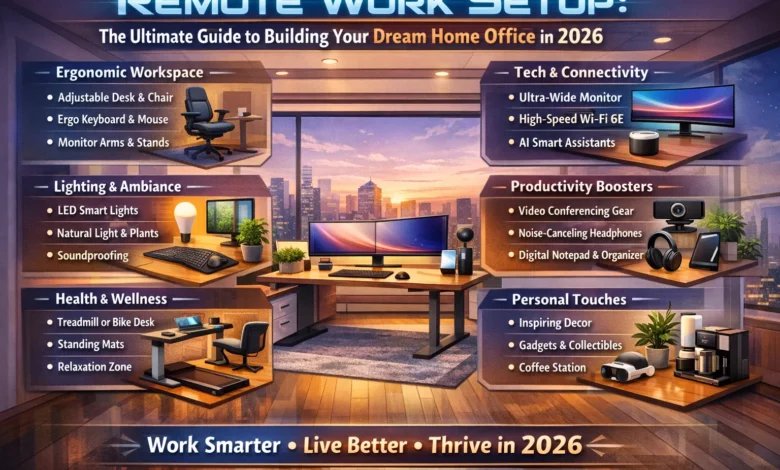
Remote Work Setup: The way we work has fundamentally changed. What once started as a temporary measure during global disruptions has evolved into a permanent lifestyle for millions of professionals worldwide. Whether you’re a seasoned remote veteran or someone just starting their work-from-home journey, one truth remains universal: your remote work setup can make or break your productivity, your physical health, and even your sanity. A poorly designed space doesn’t just lead to clutter—it leads to back pain, distractions, and a frustrating cycle of never quite feeling “off” or “on” work mode.


But here’s the good news: 2026 is the best time in history to build the perfect home office. The market is flooded with innovative solutions, from AI-powered webcams that follow your every move to standing desks that remember your preferred height presets. Whether you have a spare room to convert or just a cozy corner in your living room, this comprehensive guide will walk you through every component of a functional, comfortable, and even stylish remote work setup. We’ll cover the essential furniture, the must-have tech gadgets, the software that keeps you connected, and the often-overlooked psychological tricks that help you maintain boundaries when your bedroom is also your boardroom.
Why Your Remote Work Setup Matters More Than You Think
The Health Implications of a Poor Workspace
Let’s start with the most critical reason to invest in your remote work setup: your body. When you work from a dining chair or, worse, your couch, you’re setting yourself up for a world of hurt. Without proper ergonomics, you’re forcing your spine into unnatural positions, straining your neck as you look down at a laptop screen, and inviting repetitive stress injuries that can take months to heal. The human body wasn’t designed to sit hunched over for eight hours a day, and a subpar workspace accelerates the damage.
Think of your office chair not as furniture, but as a health tool. It is cheaper than chiropractor bills, and investing in proper lumbar support now can save you thousands in medical expenses down the road. Your remote work setup should support your body’s natural alignment, allowing you to work comfortably without constantly shifting to find a pain-free position. When your chair, desk, and monitor are properly calibrated to your unique proportions, you free up mental energy that would otherwise be spent on discomfort, allowing you to focus entirely on the tasks at hand.
The Productivity Connection
Beyond physical health, your remote work setup directly impacts how much you accomplish each day. Visual clutter leads to mental clutter—it’s not just a saying, it’s a psychological reality. Studies have shown that a messy environment can increase stress levels and anxiety, making it harder to concentrate on complex tasks. When you have a designated space that’s organized and optimized for work, your brain receives a clear signal: it’s time to focus.
A well-designed remote work setup also minimizes friction. Every time you have to search for a cable, adjust a poorly positioned monitor, or squint at a dim screen, you’re losing precious momentum. These micro-interruptions add up throughout the day, fragmenting your attention and making it harder to enter that coveted state of flow where deep work happens. By investing in the right tools and arranging them thoughtfully, you’re essentially buying back your own time and attention.
The Foundation: Choosing the Right Desk
Size Matters More Than You Think
Your desk is the command center of your entire remote work setup, so choosing wisely is crucial. When selecting a desk, bigger is almost always better—within the constraints of your available space, of course. Aim for at least 120 centimeters (about 47 inches) in width to comfortably accommodate a monitor, laptop, keyboard, and maybe a notebook for those old-school brainstorming sessions. If you work with multiple screens or need space for physical documents, consider going even wider.
But width isn’t the only consideration. The depth of your desk determines how far away your monitor sits, which affects your posture and eye strain. A deeper surface allows you to position your screen at the proper distance—roughly an arm’s length away—while still leaving room in front for your keyboard and mouse. Pay attention to the desk’s height as well; if you’re on the taller or shorter side, a standard fixed-height desk might force you into an awkward position that no amount of chair adjustment can fix.
The Standing Desk Revolution
If there’s one upgrade that can transform your remote work setup, it’s an electric standing desk. Alternating between sitting and standing throughout the day boosts circulation, reduces fatigue, and keeps your energy levels more consistent than sitting for hours on end. The best models feature dual-motor systems that operate quietly and offer enough lifting capacity to handle multiple monitors and heavy equipment without wobbling.
When shopping for a standing desk, look for features that enhance usability. Memory presets allow you to switch between sitting and standing heights with the push of a button, eliminating the need to readjust every time. Some advanced models even integrate with mobile apps, letting you control the desk from your phone and track how much time you spend in each position. And don’t overlook cable management—built-in grommets or under-desk trays keep those ugly wires contained, maintaining the clean aesthetic that helps your brain stay focused.
Specialized Desks for Different Needs
Not every remote work setup requires the same type of desk. If you’re a multitasker who juggles multiple projects simultaneously, an L-shaped desk might be your ideal solution. These corner-friendly workstations provide separate zones for different activities—perhaps one side for your computer work and the other for reviewing physical documents or taking video calls. For those with limited square footage, compact rectangular desks can fit snugly against a wall while still offering sufficient workspace.
If your home office doubles as a client meeting space, consider how your desk contributes to the professional impression you make. A reception-style desk can create a clear boundary between your workspace and the rest of your home, signaling to visitors that they’ve entered a place of business. Whatever style you choose, ensure it’s made from durable materials—steel frames and solid wood or laminate tabletops will withstand years of daily use without showing wear.
The Throne: Selecting an Ergonomic Office Chair
Understanding Lumbar Support
If your desk is the command center, your chair is the throne—and you’ll spend more time in it than almost any other piece of furniture you own. The single most important feature of any office chair is lumbar support that actually works for your lower back. Proper lumbar support maintains the natural inward curve of your spine, preventing the slouching that leads to back pain and muscle fatigue over time. Without it, your back muscles must constantly work to keep you upright, leading to exhaustion by mid-afternoon.
Look for chairs with adjustable lumbar support that can be moved up or down to hit the exact spot where your lower back curves inward. Some chairs offer inflatable lumbar bladders that let you fine-tune the pressure, while others use mechanical adjustments. The key is finding a chair that supports your specific body, not just a generic “one size fits all” solution.
Adjustability Is Everything
A truly ergonomic remote work setup requires a chair that adapts to you, not the other way around. Seat height adjustment is non-negotiable—your feet should rest flat on the floor with your thighs parallel to the ground. Armrests should also be adjustable, allowing your shoulders to remain relaxed while your elbows form a comfortable 90-degree angle at the keyboard.
Don’t overlook the importance of seat depth either. You should be able to sit with your back against the chair backrest while leaving two to three finger-widths of space between the front edge of the seat and the back of your knees. This ensures proper circulation and prevents the seat edge from cutting into your legs during long work sessions.
Material Matters for Comfort
The material covering your chair affects more than just aesthetics—it impacts your comfort throughout the day. Breathable mesh backs allow air to circulate, preventing that sticky, overheated feeling that can develop during intense work sessions. For the seat cushion, look for dense foam that won’t compress completely after a few months of use. Some high-end chairs offer memory foam or specialized ergonomic padding that conforms to your body while maintaining support.
If you’re working within a budget, don’t despair. The market has responded to the remote work boom with excellent options in the $200–$400 range that offer many of the same features as thousand-dollar designer chairs. Brands like Sihoo and branch lines from major manufacturers deliver surprising quality at accessible prices. And don’t rule out gaming chairs—many offer the same ergonomic features as office chairs, often with more adjustability and a fun aesthetic.
Tech Essentials: Hardware That Elevates Your Work
The Computer Decision: Laptop vs. Desktop
At the heart of every remote work setup lies the computer itself, and the choice between laptop and desktop has significant implications for your workflow. Laptops offer undeniable flexibility—you can move from desk to couch to coffee shop as needed, and they take up minimal space when not in use. However, that portability comes at a cost: laptop screens are typically too small for comfortable extended use, and the attached keyboard forces your hands closer together than is ergonomically ideal.
Desktops, on the other hand, provide maximum power and customization options. You can spec them with faster processors, more memory, and dedicated graphics cards that handle demanding tasks like video editing or data analysis with ease. The downside? You’re tethered to one location, which can feel restrictive if you value variety in your work environment. Many remote workers find that the sweet spot is a powerful laptop paired with a docking station—you get portability when you need it and desktop-level connectivity when you’re at your primary workstation.
The Monitor Multiplier Effect
If you could make only one upgrade to your remote work setup, adding a second monitor should be at the top of your list. Studies suggest that dual monitors can boost productivity by up to 42 percent by eliminating the constant alt-tabbing between applications. When you can keep your email or reference materials on one screen while your active work lives on the other, you maintain focus instead of breaking concentration every few minutes to switch windows.
For the optimal viewing experience, look for monitors with IPS panels that offer accurate colors and wide viewing angles. Aim for at least 99% sRGB coverage if your work involves any visual elements. Position your primary monitor exactly one arm’s length away, with the top of the screen at or slightly below eye level to prevent neck strain. If space is tight, consider a portable USB-C monitor that can easily be added or removed as needed.
Webcams: Your Professional Face
In the world of remote work, your webcam is your handshake, your smile, and your professional presence all rolled into one. The built-in cameras on most laptops produce grainy, unflattering video that can undermine your credibility during important calls. Investing in a dedicated webcam dramatically improves how you’re perceived, signaling that you take your remote professionalism seriously.
The latest generation of webcams offers features that were unthinkable just a few years ago. AI-powered tracking keeps you centered in the frame even as you move around, perfect for dynamic presentations where you might gesture or step away from your desk. Some models include voice tracking that follows whoever is speaking, while others offer gesture controls that let you zoom or pan without touching any buttons. For those who work in less-than-ideal lighting, look for cameras with large sensors and excellent low-light performance—dual native ISO capabilities can capture clear, detailed images even in dim home offices.
Audio: Headphones and Microphones
Clear communication is the lifeblood of remote collaboration, and your audio equipment plays a starring role. For headphones, active noise cancellation (ANC) is a game-changer, especially if you share your home with partners, children, roommates, or noisy pets. Over-ear designs tend to be most comfortable for all-day wear, though high-quality earbuds can work well if you prefer a lighter feel. Look for models with built-in microphones that handle calls clearly, and consider dedicated Bluetooth headsets with boom microphones if voice clarity is absolutely paramount for your role.
Speaking of microphones, the leap from your laptop’s built-in mic to a dedicated USB microphone is astonishing. Built-in mics pick up every keyboard clack and background noise, making you sound distant and unprofessional. A USB mic like the Blue Yeti or similar focuses on your voice using cardioid pickup patterns, dramatically improving audio quality for meetings, recordings, or podcasts. For the cleanest setup, mount your mic on a boom arm that keeps it off your desk surface while positioning it 6–12 inches from your mouth for optimal sound.
Essential Tech for Your Remote Work Setup
| Category | Key Features to Look For | Why It Matters |
| Computer | Match specs to workflow (8GB RAM for basic tasks, 16-32GB for creative work) | Prevents frustrating lag and application crashes |
| Monitor | IPS panel, 99%+ sRGB, adjustable height, one arm’s length distance | Reduces eye strain and neck pain while boosting productivity |
| Webcam | 4K resolution, AI tracking, excellent low-light performance | Projects professionalism and keeps you clearly visible |
| Headphones | Active noise cancellation, comfortable over-ear design, clear mic | Blocks distractions and ensures clear communication |
| Microphone | USB connection, cardioid pickup pattern, boom arm optional | Eliminates background noise and makes you sound polished |
Connectivity and Power: The Invisible Backbone
Internet That Won’t Let You Down
Nothing derails a productive day faster than a spotty internet connection. Your remote work setup is only as strong as the network it runs on, so investing in quality networking equipment is essential. Start by replacing the router your internet provider gave you—especially if you’re renting it monthly. A good dual-band router (supporting both 2.4 GHz and 5 GHz frequencies) allows you to prioritize your work devices on the faster, less congested band while family members stream video on the other.
If your home is larger or has dead zones, consider a mesh Wi-Fi system. These use multiple nodes placed around your house to create a seamless blanket of coverage, ensuring strong signals even in remote corners. For the truly dedicated, a mobile hotspot device serves as an excellent backup during outages—because even the best providers experience downtime, and being prepared keeps you productive when others are scrambling.
The Docking Station Difference
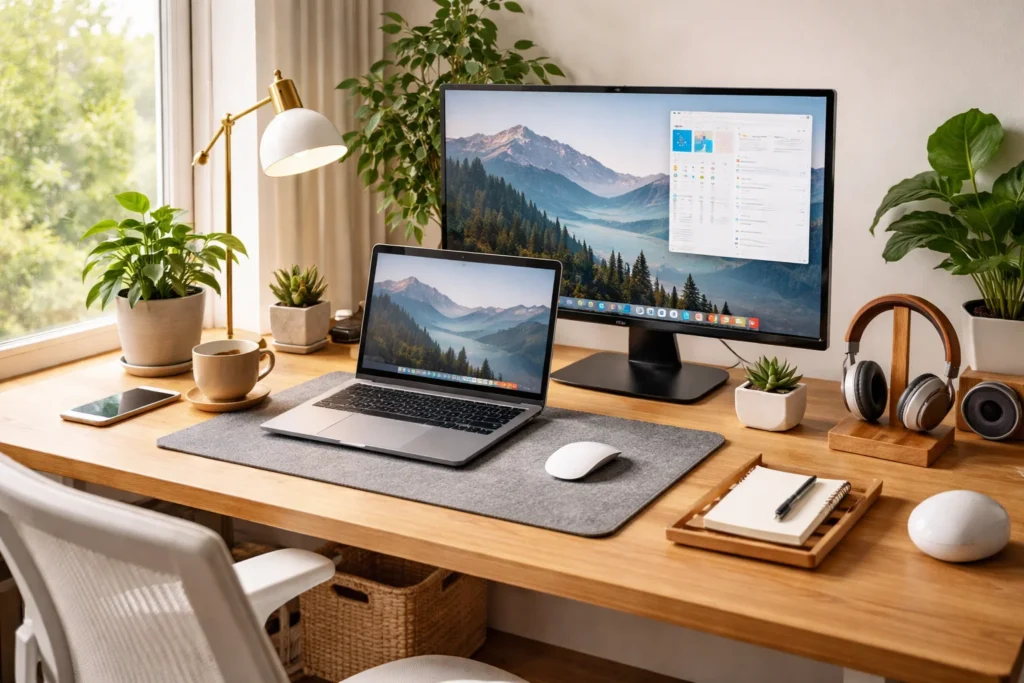
If you move between laptop and desk mode throughout the day, a docking station transforms your remote work setup from chaotic to streamlined. A good dock connects to your laptop with a single cable—usually USB-C or Thunderbolt—while providing ports for your monitor, keyboard, mouse, ethernet, and power. This means you can transition from mobile to desktop mode in seconds, without crawling under your desk to plug in half a dozen cables.
When selecting a dock, consider both your current needs and future expansion. Look for enough ports to handle your existing peripherals, plus a few extras for devices you might add later. Some docks even include charging capabilities, so your laptop tops up while connected, eliminating the need for a separate power cable.
VPNs and Security
Working from home doesn’t mean working without security. If you access company data or sensitive information, a virtual private network (VPN) is non-negotiable. VPNs encrypt your internet traffic, making it unreadable to anyone who might intercept it—whether that’s on your home network or if you occasionally work from a coffee shop. Services like NordVPN or ExpressVPN offer user-friendly apps that run in the background, protecting you without demanding constant attention.
Beyond VPNs, ensure your computer’s operating system and antivirus software are always up to date. Enable automatic updates whenever possible, as these often include critical security patches. And if you share your workspace with family members, consider creating separate user accounts so work files remain protected from accidental deletion or prying eyes.
Optimizing Your Physical Environment
Lighting That Flatters and Functions
Good lighting serves two purposes in your remote work setup: it reduces eye strain during long work hours, and it makes you look professional on camera. The worst possible scenario is sitting with a window behind you, which creates a silhouette effect that hides your face in shadow. Instead, position your desk perpendicular to windows so natural light falls on you from the side, illuminating your face evenly without glare on your screen.
For task lighting, an adjustable desk lamp allows you to switch between warm, relaxing light and cool, focused white light depending on the time of day and your work style. When you have video calls, an LED panel or ring light placed slightly above eye level fills in shadows and makes you look vibrant and engaged. These investments pay dividends in how colleagues perceive you and how alert you feel throughout the day.
The Surprising Power of Plants
Don’t underestimate the impact of bringing nature into your remote work setup. A simple low-maintenance plant—like a Pothos or Snake Plant—improves air quality and adds a visual break that reduces stress. Living greenery softens the technological harshness of monitors and cables, creating a space that feels more human and less like a cubicle transplanted into your home.
If you lack a green thumb, high-quality artificial plants can provide similar visual benefits without the maintenance. The goal is to create a space that feels alive and inviting, counteracting the sterile, utilitarian vibe that home offices can sometimes develop.
Cable Management for Sanity
Nothing ruins the aesthetic of an otherwise perfect remote work setup like a spaghetti mess of cables. Beyond appearances, tangled cords make it harder to clean, harder to troubleshoot connection issues, and harder to maintain that sense of calm that supports focused work. Fortunately, cable management doesn’t require advanced skills—just a few inexpensive tools and a systematic approach.
Start by grouping cables with Velcro ties, keeping power cables separate from data cables to minimize interference. Use under-desk trays or baskets to stash power strips and excess cable length out of sight. For cables that must run along the floor, consider adhesive cable channels that blend with your baseboards. When you finish for the day, take thirty seconds to tidy your desk—waking up to a clean workspace sets a positive tone for the next morning.
Digital Tools and Software Workflow
Communication Platforms
Your remote work setup extends beyond physical hardware into the digital tools that connect you with colleagues. The landscape of communication platforms has matured significantly, with each tool finding its niche. Slack and Microsoft Teams excel at quick, informal chats and channel-based discussions. Zoom and Google Meet handle video calls with features like virtual backgrounds and breakout rooms. Email remains the home for formal communication and external correspondence.
The key to avoiding digital overwhelm is establishing clear norms around which tool to use for which purpose. Reserve instant messaging for urgent, quick questions and video calls for complex discussions that benefit from face-to-face interaction. Email works best for messages that require thoughtful responses or serve as permanent records. When your team agrees on these conventions, you spend less time wondering where to send messages and more time actually communicating.
Task Management and Productivity Apps
Staying organized without an office full of visual cues requires digital support. Task management tools like Trello, Asana, and Notion help you track projects, deadlines, and responsibilities in a visual, accessible format. These platforms let you break large projects into manageable chunks, assign tasks to team members, and monitor progress without endless status update meetings.
For personal productivity, time tracking apps like Toggl or RescueTime provide eye-opening insights into how you actually spend your day. You might discover that what feels like thirty minutes on email is actually two hours, or that your most focused work happens in the late morning. Armed with this data, you can adjust your schedule to protect your peak productivity hours and minimize low-value activities.
Establishing Digital Boundaries
One challenge of remote work is the blurring of boundaries between work time and personal time. When your office lives in your pocket (thanks to smartphone apps), it’s tempting to check emails at all hours. Combat this by establishing digital boundaries that protect your downtime. Use notification settings liberally—turn off work app notifications outside of working hours, or use Do Not Disturb modes that silence everything during focused work blocks.
Some teams implement “focus hours” where notifications are turned off across the board, allowing everyone to dive deep into complex tasks without interruption. Shared calendars can signal your availability to colleagues, showing when you’re in meetings, when you’re heads-down working, and when you’re officially offline. These practices require team-wide adoption to work effectively, so advocate for them with your colleagues and leadership.
Creating Routines That Support Success
The Morning “Commute”
When you worked in an office, the commute served a psychological purpose beyond transportation—it gave you time to transition from home mode to work mode. Without that buffer, remote workers often struggle to shift mindsets, leading to difficulty focusing or feeling perpetually “on”. Recreate this transition with a personalized morning routine that signals to your brain: work is starting.
This routine might include getting dressed in work-appropriate clothes (even if you’d never wear them out of the house), making a specific cup of coffee, or spending five minutes reviewing your priorities for the day. Some workers take a short walk around the block, using the physical movement to mark the boundary between personal and professional time. The specific activities matter less than the consistency—over time, this routine becomes a powerful psychological cue that prepares you for focused work.
Structuring Your Day for Energy
Remote work offers unprecedented flexibility in how you structure your day, and smart remote workers leverage this to match tasks with their natural energy cycles. Are you sharpest in the early morning? Tackle your most demanding work then, saving routine tasks for afternoon slumps. Do you hit a wall at 3 PM? Schedule a true break—not just scrolling on your phone, but stepping away from screens entirely.
The key is intentionality. Without the structure imposed by an office, it’s easy to let days blur together into an undifferentiated mass of work. Combat this by scheduling specific blocks for different types of work: deep focus, meetings, administrative tasks, and learning. Include breaks as non-negotiable appointments, and use techniques like the Pomodoro method (25 minutes of focused work followed by 5-minute breaks) to maintain momentum throughout the day.
“Create a mental and physical boundary. Whether it’s a spare room or a specific corner, your brain needs to know: When I sit here, I work.”
Ending Your Day Deliberately
Just as important as starting your day well is ending it with intention. Without a physical office to leave, remote workers often find themselves checking emails late into the evening or thinking about work problems during family time. Establish an end-of-day routine that signals completion and helps you transition back to personal life.
This might include reviewing what you accomplished (a practice that builds satisfaction and helps with planning), tidying your desk for tomorrow, and literally closing the door to your workspace if you have one. Some workers change out of work clothes or engage in a physical activity that marks the shift. The goal is to create a clear boundary that allows you to fully disengage, returning to work tomorrow with renewed energy rather than lingering fatigue.
Frequently Asked Questions
Q1: What are the absolute essentials for a basic remote work setup?
A: At minimum, your remote work setup should include a desk large enough for your equipment, an ergonomic chair with adjustable lumbar support, a computer appropriate for your tasks, and a reliable internet connection. From there, prioritize a second monitor for productivity, a dedicated webcam for professional video calls, and noise-canceling headphones if you need to block out household distractions.
Q2: How much should I budget for a good remote work setup?
A: Budgets vary widely based on needs, but you can build a solid foundation for $500–$1,000. A decent standing desk runs $300–$600, an ergonomic chair costs $200–$400, and essential tech like a webcam and headphones adds another $100–$200. Remember that these are investments in your health and productivity—cheaper options may save money upfront, but cost more in discomfort and replacement down the road.
Q3: How do I maintain work-life balance when my office is in my home?
A: Work-life balance with a remote work setup requires intentional boundaries. Create a dedicated workspace that you can physically leave at the end of the day, establish consistent start and end times, and develop routines that bookend your work hours. Communicate your schedule to household members and use shared calendars to signal your availability. When work ends, close your laptop and step away—literally and mentally.
Q4: What’s the most important ergonomic rule for home office setup?
A: The most critical ergonomic principle is maintaining neutral body positions. Your feet should rest flat on the floor, thighs parallel to the ground, elbows at 90 degrees when typing, and the monitor top at or slightly below eye level, about an arm’s length away. When these align, your joints and muscles work efficiently without strain. Start with your chair, then adjust everything else to match.
Q5: How can I improve video call quality without spending much money?
A: Several low-cost improvements can dramatically enhance your video presence. Position yourself facing a window for natural light, avoiding backlighting that creates silhouettes. Raise your camera to eye level—a stack of books works fine temporarily. Clear clutter behind you or use a virtual background. For audio, even inexpensive earbuds with a microphone beat your laptop’s built-in mic.
Q6: Do I really need a standing desk?
A: While not strictly necessary, standing desks offer significant benefits for long-term health and energy management. Alternating between sitting and standing improves circulation, reduces fatigue, and can minimize back pain. If a full standing desk isn’t in your budget, consider a desk converter that sits on your existing surface and raises your work to standing height when needed.
Q7: How do I stay focused when working from home with family around?
A: Focusing on a busy household requires both physical and communication strategies. Use noise-canceling headphones to block ambient sound. Set clear expectations with family members about when you cannot be interrupted—visual cues like a closed door or a specific light can help. If possible, create a dedicated workspace that’s off-limits during work hours. For parents, coordinate schedules with partners to carve out focused blocks when childcare responsibilities are covered.
Conclusion
Building the perfect remote work setup isn’t about buying the most expensive equipment or following a rigid checklist. It’s about creating a space and routine that supports your unique work style, protects your physical health, and helps you maintain the boundaries that keep work from consuming your entire life. The beauty of working from home is the freedom to design an environment that truly works for you—not one sized by corporate facilities managers or constrained by cubicle walls.
As we move further into 2026, the tools available for remote workers have never been better or more accessible. From AI-powered cameras that make you look like a broadcasting professional to standing desks that remember your preferences, technology has evolved to support the distributed workforce that is now the new normal. But remember that technology serves you, not the other way around. The most sophisticated remote work setup in the world won’t help if you haven’t established the routines, boundaries, and habits that make remote work sustainable.
Start with the fundamentals: a comfortable chair, a functional desk, and reliable connectivity. Build from there based on your specific needs and the demands of your role. Experiment with different arrangements and don’t be afraid to tweak things when they’re not working. Your remote work setup is a living system that should evolve as your work changes and as you learn more about what helps you do your best. With intention and attention, you can create a home office that doesn’t just get you through the workday, but actually makes you look forward to starting it.